NEWS & COMMENTARY
TACO again
A clip for the story everyone is talking about.
Make your words move.
Create the newspaper clipping effect: keep your highlighted words centered while generated paper layouts change. Adjust the color, cut speed and sound, then export a clip for your next edit.
This is a sample frame. Click Generate to create a video with your words and settings.
Generate your first video using the settings on the left.
Changing file format requires regeneration. Your existing download keeps its original format.
Checking export formats…
Choose an example to load its words and paper style. Adjust the settings, then generate your own video.
A clip for the story everyone is talking about.
Introduce a new idea with a clip built around its name.
Turn a simple reminder into a clip for your next chapter.
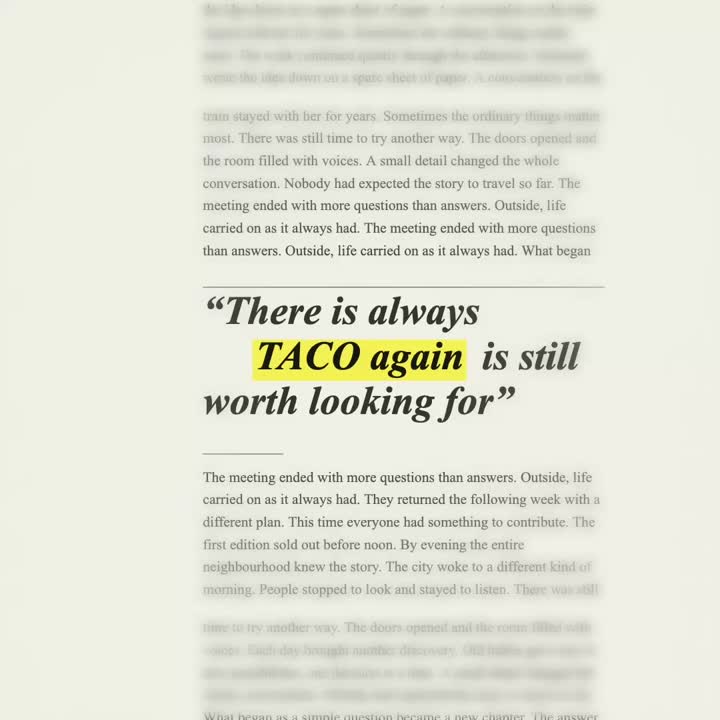
Generated newspaper-style layouts, not scans of published news articles.
A text match cut keeps one highlighted phrase in place while the printed pages around it change. This browser tool builds that sequence from editable newspaper layouts, with adjustable color, timing and sound. Type your phrase above, generate a first version, then refine it below. No account or footage upload is required.
Start a portrait clip at 1080 × 1920. Check captions and interface overlays in your final edit before posting.
Use the same vertical canvas for a clip intro or chapter break. Keep your important words near the center.
Add a clip to your portrait timeline. Export the clip, then combine it with footage and sound in your editor.
| Task | This tool | Manual timeline workflow |
|---|---|---|
| Page material | Generated newspaper layouts | Collect or design each clipping |
| Word alignment | Centered automatically | Position and scale each layer |
| Timing and sound | Cut speed and synchronized effects | Set edit points and place sound clips |
| Creative control | Focused paper, color and rhythm controls | Custom footage, compositing and effects |
| Output | 1080p, 60 fps; supported MP4 or WebM | Depends on your editor and export settings |
Use this tool for a short newspaper-style intro or transition. For real article clippings, custom footage or a complete video edit, use a timeline editor.
Add the word or phrase you want to put in the spotlight.
Pick a paper style, highlight color and rhythm, then click Generate to apply your settings.
Download your video, then drop it into your next edit.
Keep your first sequence focused on a short, readable phrase. A name, place, project title or simple statement usually gives the eye a stronger anchor than a complete sentence. Longer phrases are supported, but their letters become smaller to fit the available width. Check the preview at the size your audience will actually see.
For a personal sequence, try a date, a shared expression or the name of a destination. For a creative project, use the idea that connects the surrounding shots. You can edit your words without uploading any footage. Compare a few alternatives before exporting your sequence, and choose the version that remains easy to recognize on a small screen.
The newspaper treatment gives a clip its familiar editorial character. Serif lettering, restrained paper colors and highlighted words suggest a collection of printed clippings. The effect comes from the relationship between those details: a quiet background makes the selected phrase stand out, while changing page structures keep the sequence moving.
Use the paper presets to adjust the mood of your clip. A lighter page works well with clean footage; warmer archive paper can suit memories and retrospective stories. These are generated layouts rather than scans of published articles. Your clip stays editable because the words and surrounding type are drawn together. Shuffle the pages to explore another arrangement before deciding which sequence fits your project.
The defining feature of an animation is alignment. The highlighted phrase should feel anchored while everything around it changes. If the words jump between unrelated positions, viewers must search for them again on every cut. That can make a short sequence feel harder to follow than it needs to be.
This animation tool centers the visible lettering across its changing layouts. Different serif styles and paragraph crops add variation without abandoning that focal point. Use the text size control to adjust how much of the frame the phrase occupies. Review the whole animation after changing the size, especially when working with a long phrase, punctuation or a mixture of English and Chinese characters.
Cut speed changes the energy of a sequence. Faster switches can give a brief introduction urgency, while slower switches leave more time to recognize each page. Start with the default rhythm, then adjust it while thinking about the footage that will appear before and after your exported clip.
Duration and speed work together. A longer sequence does not automatically tell a stronger story; it simply gives the pattern more time to develop. For a short intro, keep the sequence concise and let the next shot carry the idea forward. If you are combining a sequence with music, import the export into your video editor and position the sequence against the section of the track you want to emphasize.
Sound helps each change in a clip feel intentional. Choose Paper shuffle for a light rustle, Camera shutter for a double click, Film advance for mechanical ticks, Polaroid for a motor and snap, or Flash pop for a low punch. Use the sound preview button to compare them before generating. The generated sound events follow the same cut schedule as the video, keeping their onsets tied to the changing pages.
Listen to your clip at a comfortable volume before placing it into a larger edit. A busy soundtrack may already contain enough rhythm, so the silent option can be useful when you plan to mix your own audio later. Preview sound starts through the playback control and can depend on browser audio permissions. Export a short clip first if you want to check how its sound sits beside narration or music.
A little edge defocus can guide attention toward the center of an animation. The selected phrase remains clear while surrounding type becomes progressively softer toward the outside of the frame. This gives the composition a focal area without covering the background or replacing it with a flat color.
Adjust the blur control while checking both dense paragraphs and open quotation layouts. Too much softness can hide the variety that makes an animation interesting; too little may leave surrounding words competing with your phrase. The right setting depends on the size of the text and the final viewing context. Preview your animation on the intended screen size, then choose the lightest treatment that gives the focal words enough separation.
Watch your animation once for readability, once for rhythm and once with the surrounding footage. Check that the spelling is correct, the phrase fits comfortably, and the selected highlight remains distinct from the paper. A small preview can reveal readability problems that are easy to miss when editing on a large monitor.
Then check the downloaded animation in the application you will use for the final edit. Device fonts, browser encoding support and playback software can affect the result. If something feels wrong, return to the settings and try a shorter phrase, a different speed or a quieter sound treatment. Save the version that serves your story, and keep the animation settings simple enough to reproduce for another project.
Learn how phrase length, page layouts and soft edges work together.
Choose a format, check browser support and fix common export issues.
A short clip, ready for your next edit. Here are the available settings and export limits.
MP4 and WebM availability depends on your browser’s video and audio encoding support. Generation takes at least 8 seconds and may take longer on your device.
The same word stays in place while the page around it changes. It's a simple, striking transition for films, reels and visual stories.
Your text and video are processed on your device. Your current settings are saved in this browser. We use Google Analytics to measure site visits.
Yes. English and Chinese phrases are supported. Text automatically scales to fit the frame; your device's serif fonts determine the exact appearance.
MP4 is available when your browser supports H.264 and the selected audio. Otherwise, you can export WebM if supported. Exports are 1080p at 60 frames per second.
No account is needed. Create, preview and export directly from this page.